Venue Reservation Operation
Timing when reservation should be made
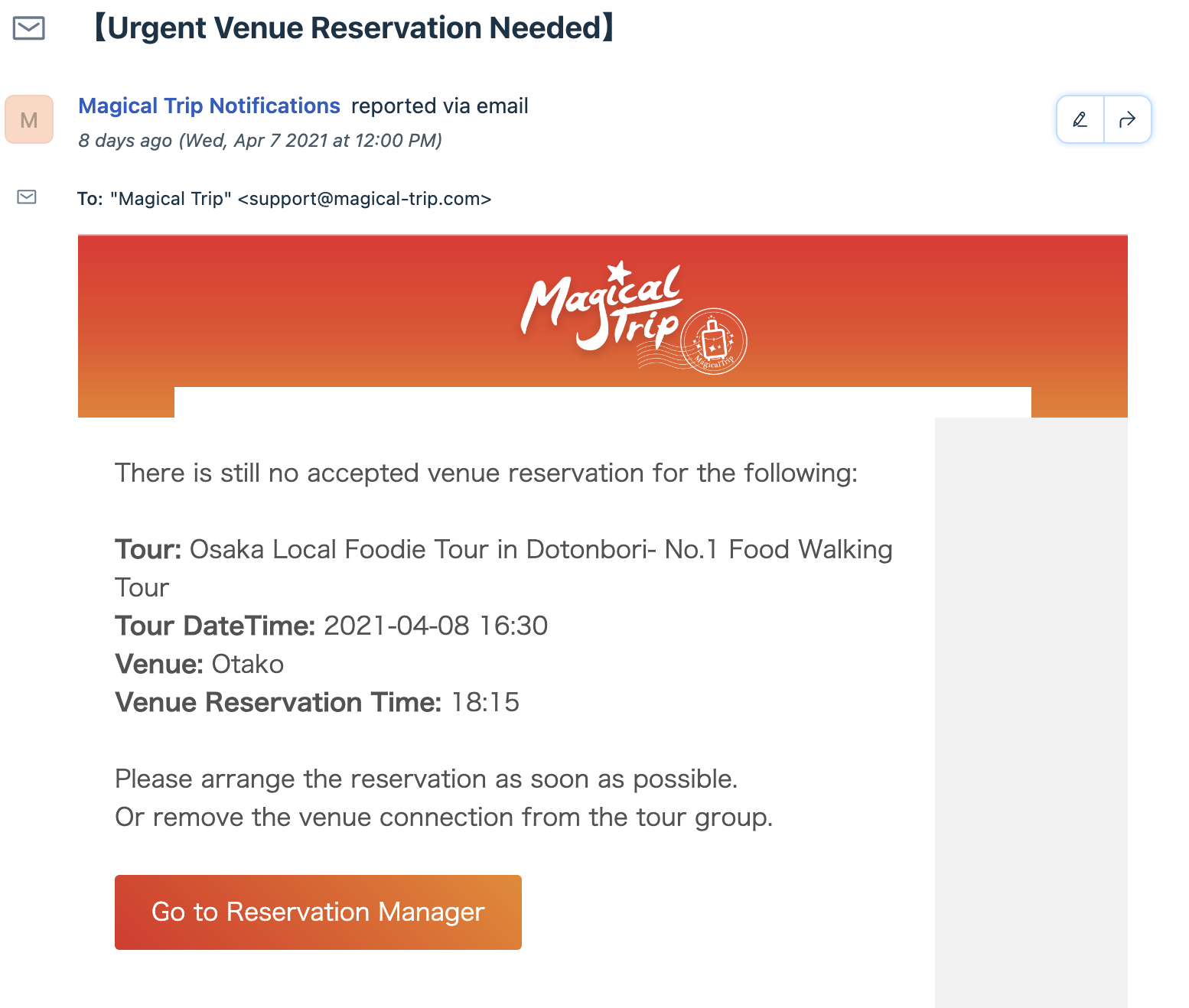
When we receive this email, it means there is a tour group that we need to make venue reservations.
How to make a venue reservation
- Visit Reservation Manager
- Select From / To date to filter the tour groups
- Make a venue reservation by designated method by venue (You can check the method for each venue in Reservation Venue Information) (* Due to covid, it is better to call each venue now as of April 2021)
- Click
+andAdd Manuallyafter the venue reservation is confirmed. This changes the venue reservation record - Once all of venues' resrevations connected to the tour group has been confirmed, it gets green. Also, this venue reservation information will be shown in guide app so guides will know which venue they should visit during the tour
How to change venue when we cannot make a reseravtion for some venues or reservation time
If we need to make a reservation for a new venue when we cannot book for any of registered venues, please refer to How to register venue information
Definition of the color in Reservation Manager
Green: Venue reservation for the tour group is done

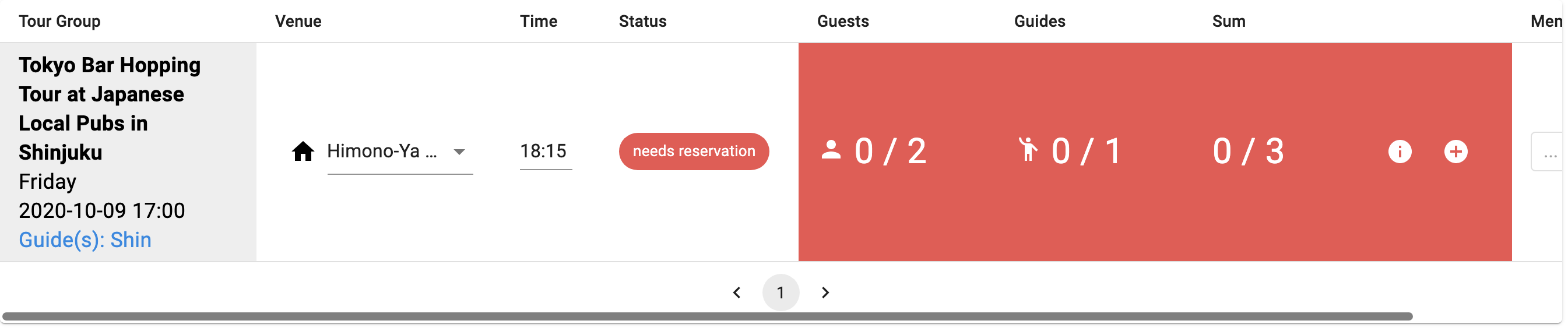
Red: Venue reservation for at least one venue attached to the tour group is not done
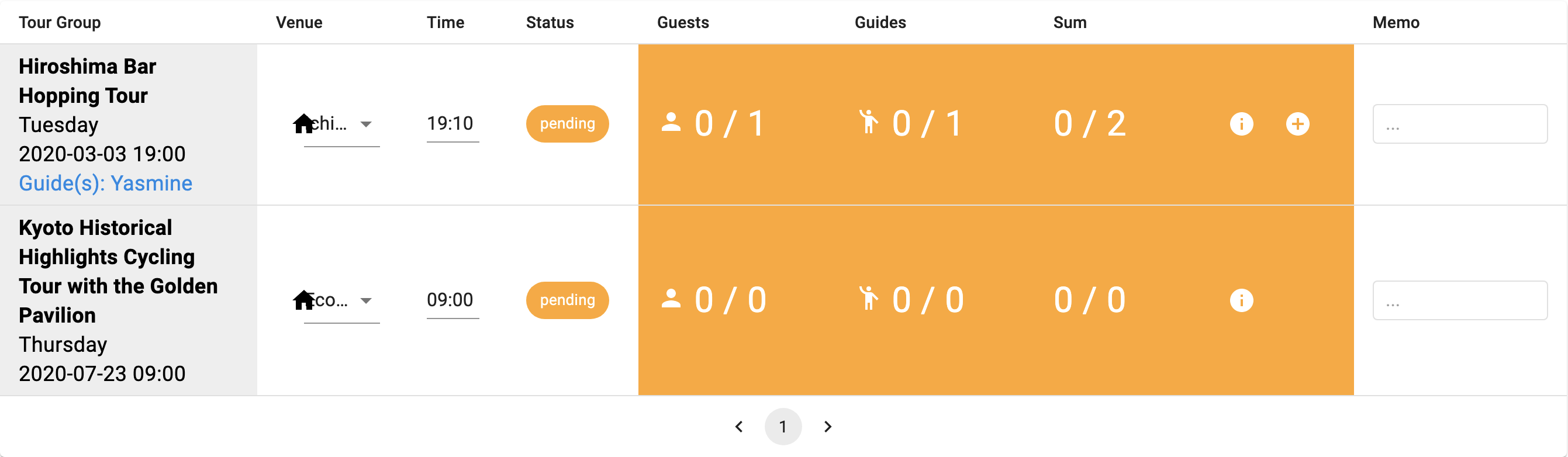
Yellow: We send venue reservation message to venues but have not received any responce from venues yet. For some venues, message can be sent from backoffice and venue can answer if they accept or reject the request by clicking a button in the email, or clicking the number on the phone. In the meantime we wait for their reponce, the color is in yellow
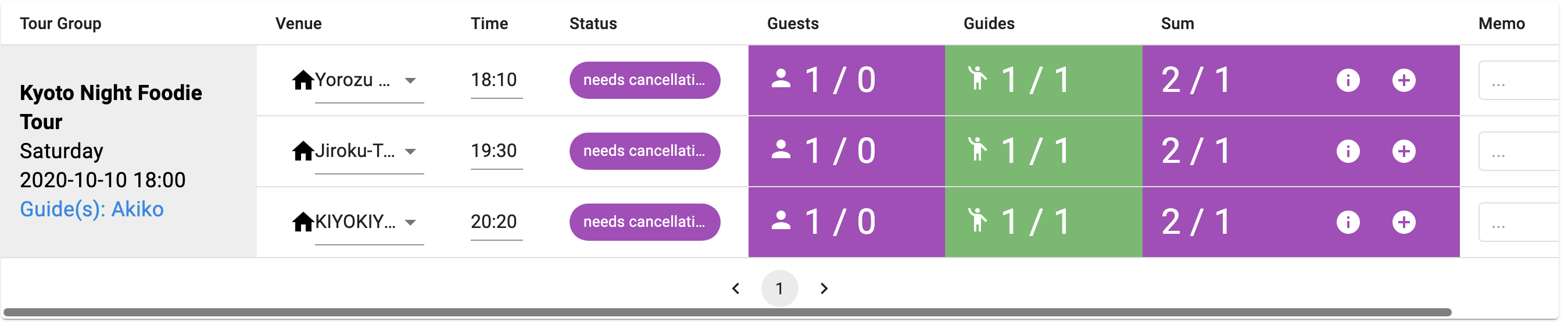
Purple: Venue reservation needs to be cancelled. This happens when a venue reservation is made but after that customer cancels the booking, so we need to decrease the number of participants