Amazon Tour Magical Trip Operaion
Operation Flow before the tour
Booking Confirmation Email comes to
support@magical-trip.comEmail Title:
You have a new Amazon session booking scheduled for 〇〇Add booking information to backoffice manually
Guide will be assigned automatically by auto guide recruiting email
Operation Flow when shopping is made during the tour
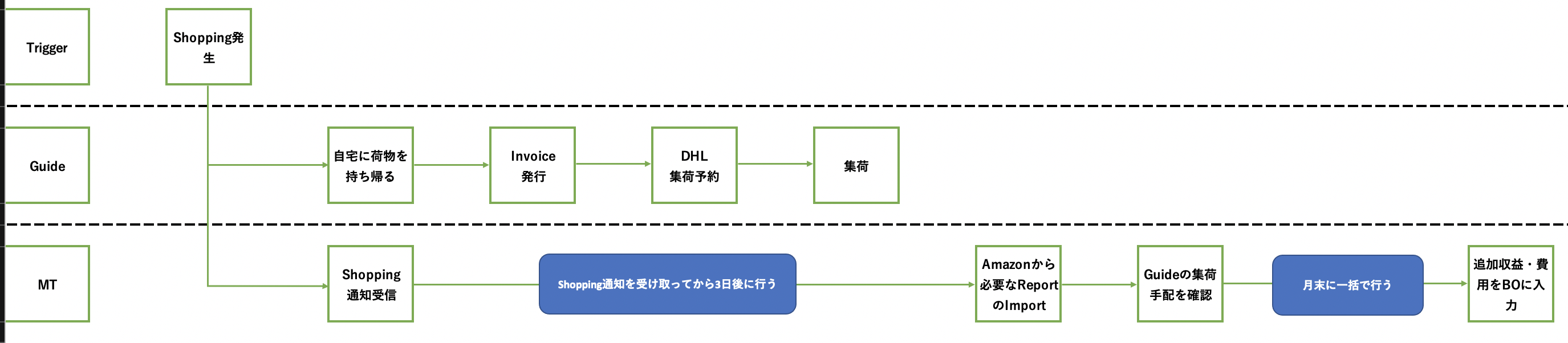
1. "Sold, ship now" Email comes to to "support@magical-trip.com" if Shopping is made during the tour
- Receive this type of email from Amazon when shopping is made
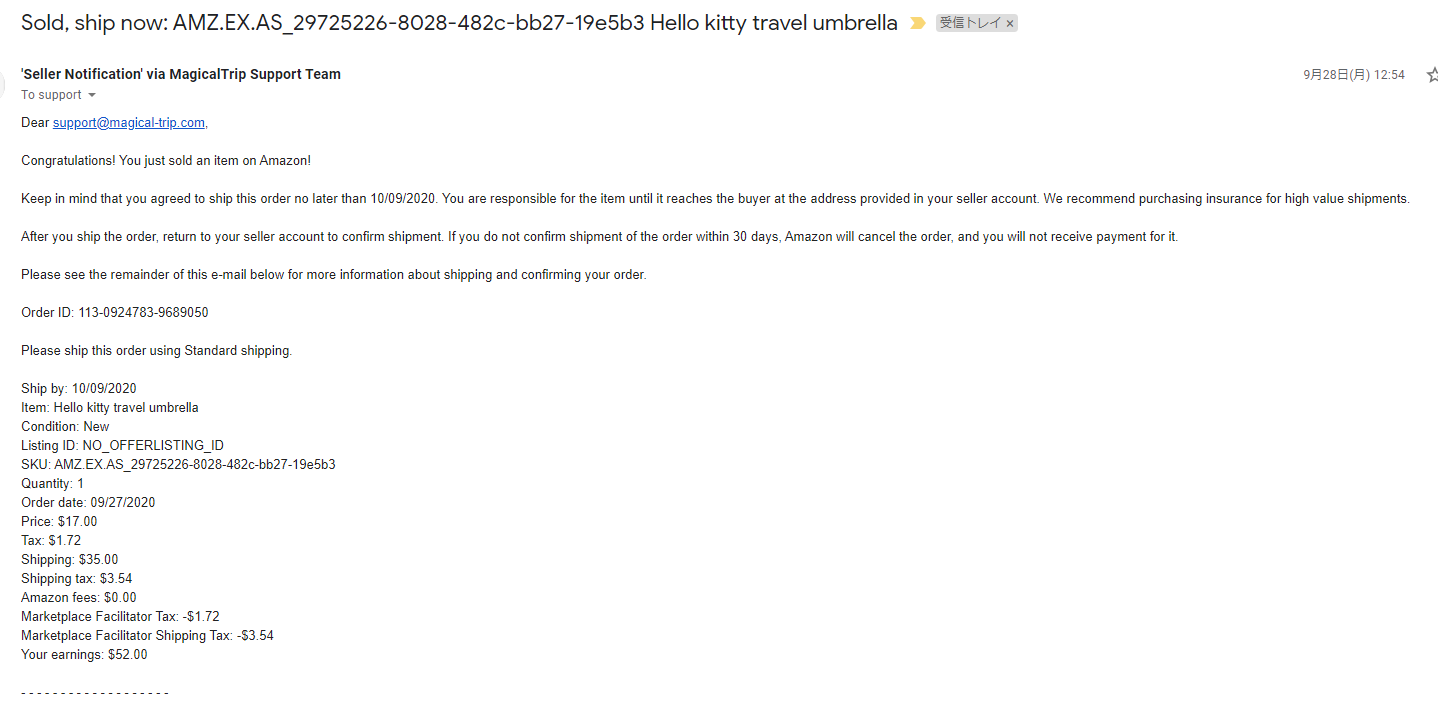
2. Download Booking Reports from Metabase and update Amazon Tour Operation Management sheet
3 days after receiving
"Sold, ship now" Email, visit Metabase and download MT booking data- Change date range(Start data must be 2020/10/1)
- Metabase URL: https://monitoring.magical-trip.com/question/260?Date_Range=2020-10-01~2020-12-01
Update Amazon Tour Operation Management sheet
- Import csv file into
(raw)MT sheet
- Import csv file into
3. Download Order Reports from Amazon Seller Central and update Amazon Tour Operation Management sheet
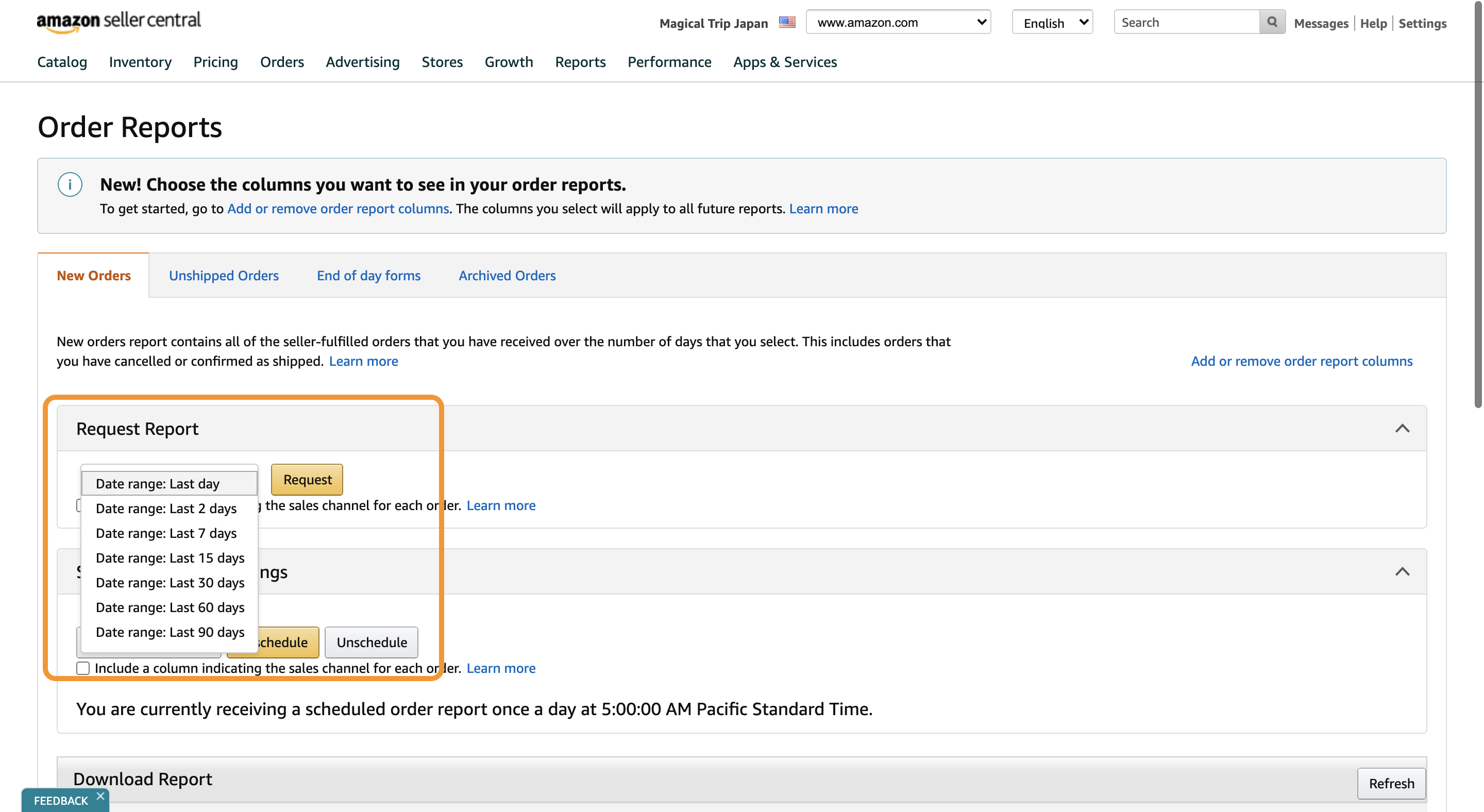
3 days after receiving
"Sold, ship now" Email, visit Amazon Seller Central and downloadOrder Reports- Visit Amazon Seller Central -> Orders -> Order Reports -> New Orders -> Request Reports -> Select
Data Range:Last 90days-> Request - URL: https://sellercentral.amazon.com/order-reports-and-feeds/reports/ref=xx_orderrpt_dnav_xx
- Visit Amazon Seller Central -> Orders -> Order Reports -> New Orders -> Request Reports -> Select
Update Amazon Tour Operation Management sheet
- Import csv file into
(raw)Amazon_OrderReports
- Import csv file into
4. Download Payment Reports from Amazon Seller Central and update Amazon Tour Operation Management sheet
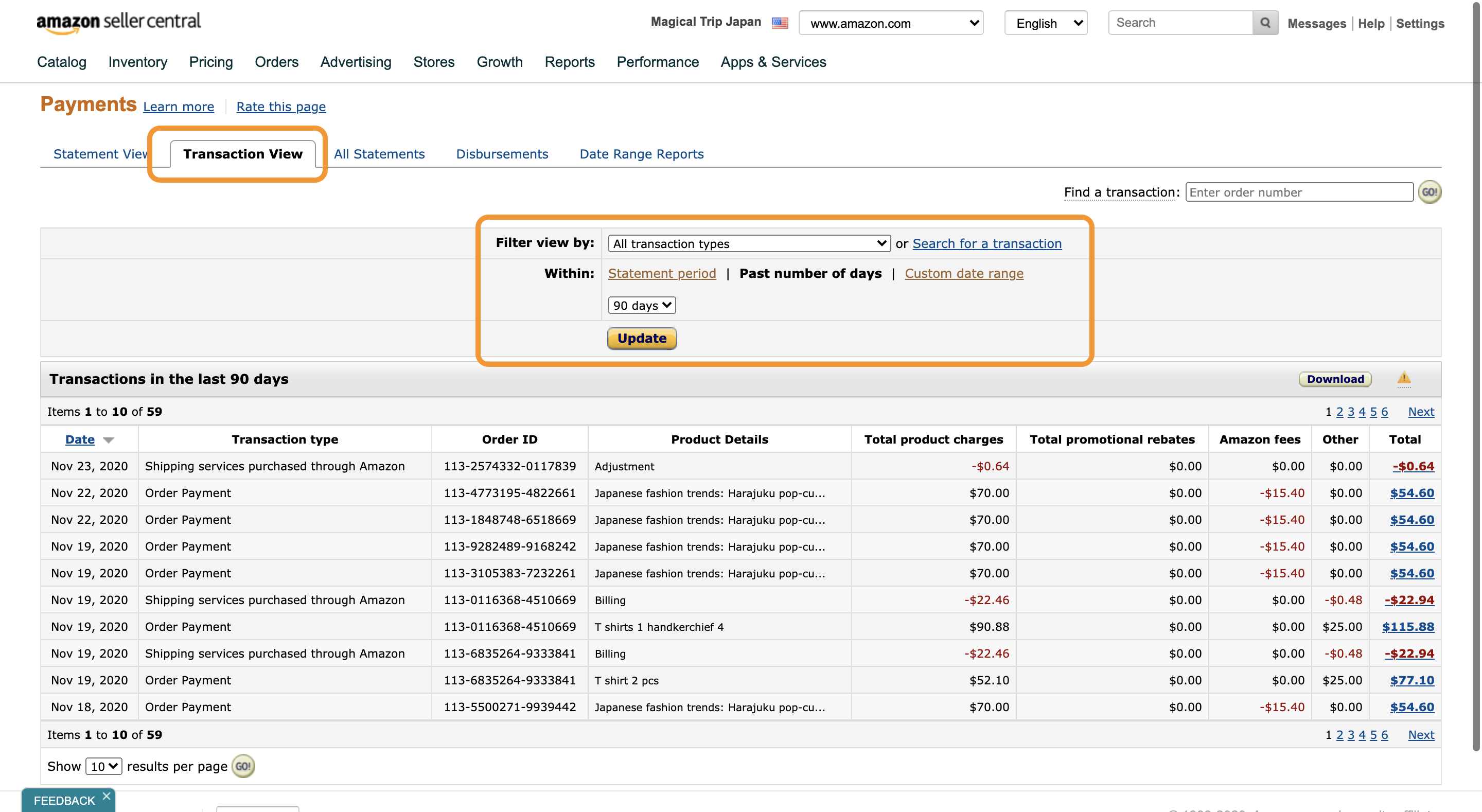
3 days after receiving
"Sold, ship now" Email, visit Amazon Seller Central and downloadPayment Reports- Visit Amazon Seller Central -> Reports -> Payments -> Transaction View -> Select
Custom date range-> SelectPast number of days-> ClickUpdate - URL: https://sellercentral.amazon.com/gp/payments-account/view-transactions.html?ie=UTF8&mostRecentLast=0&pageSize=Ten&subview=daysAgo&view=filter
- Visit Amazon Seller Central -> Reports -> Payments -> Transaction View -> Select
Update Amazon Tour Operation Management sheet
- Import csv file into
(raw)Amazon_Transactions_Reports
- Import csv file into
5. Check if the DHL pick up is reserved correctly
- Visit BO_Additional Revenue/Cost and check if
Shipping Costis added - If added, pick up is reserved
- If not, send a guide reminder email
6. At the end of every month, add additional revenue and additional cost caused by Amazon shopping to BackOffice
Visit BO_Additional Revenue/Cost
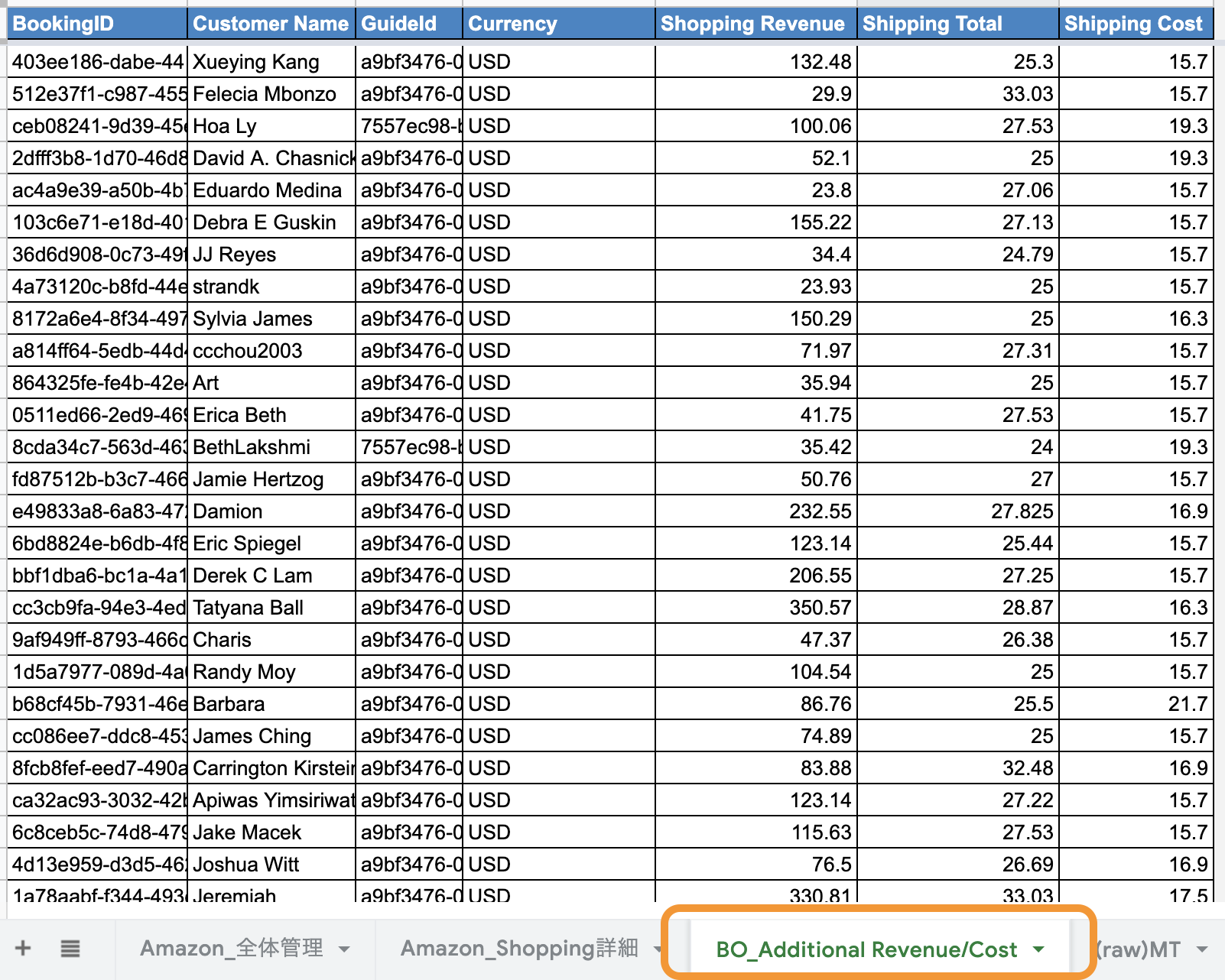
Export
csvfile from BO_Additional Revenue/Cost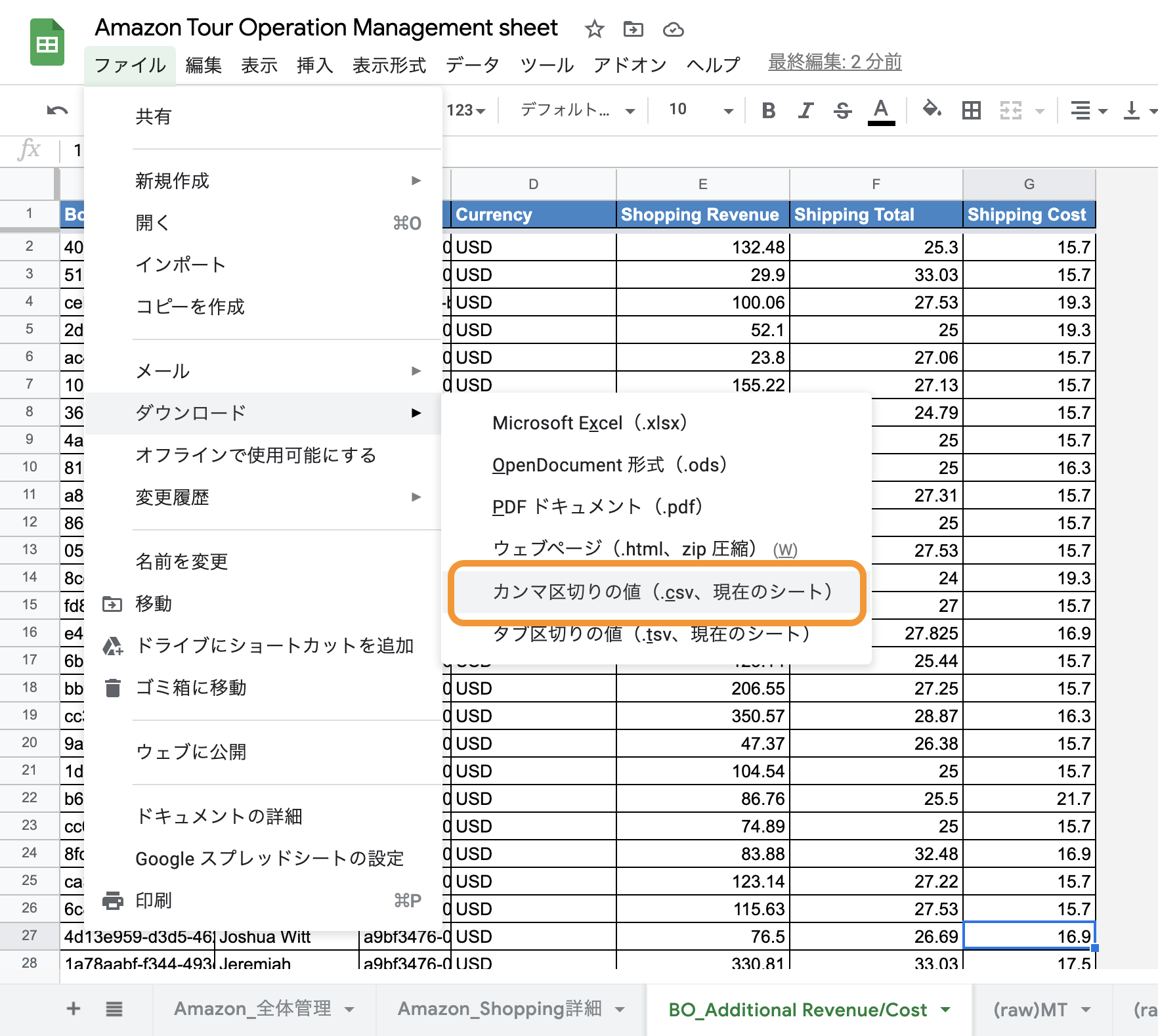
Visit Import Amazon Addition Purchases by CSV file in V3 BackOffice
Upload the csv file and click import
過去のフロー
以下は過去のフロー(2020/10まで)なので気にしない
2. Issue an invoice from "Amazon Seller Central"
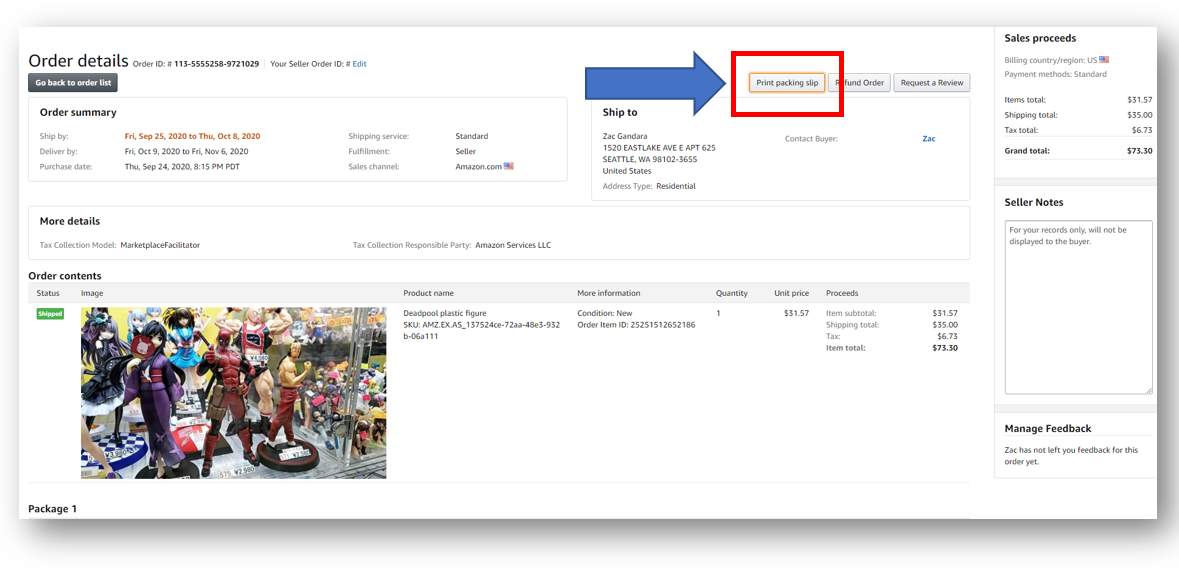
You can issue from here
STEP1. Download an invoice by clicking the print package slip button
STEP2. follow this flow
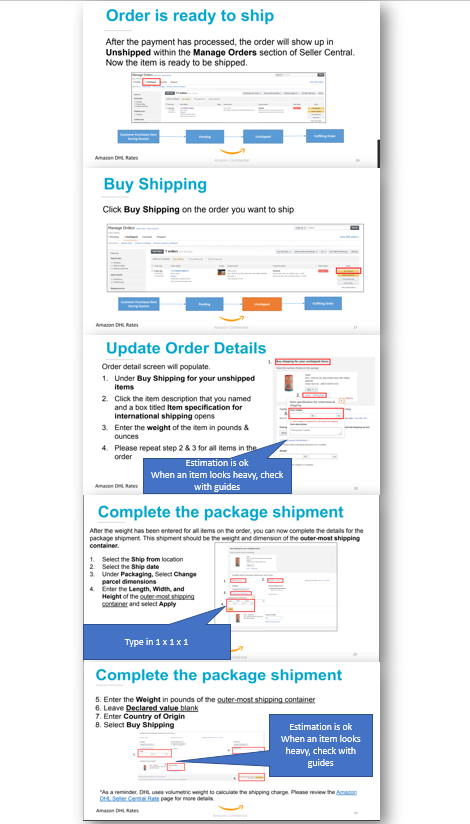
STEP3. When the step 1&2 are complete, a lable like blow pops up automatically and download it.
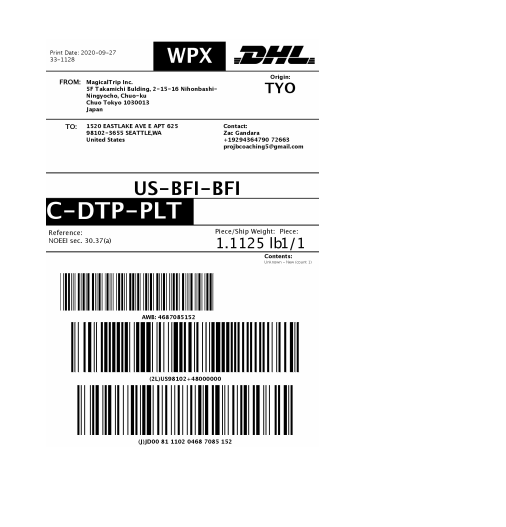
3. Send the invoice to the guide by email
- Send the
2 types of documentsin the STEP1 and 3 to the guide
4. Check the guide when DHL can visit guide's house to pick up the items
- A pickup time can be selected from 9am to 5pm
5. Reserve DHL pick up
Go to DHL Website
Fllow the instructions below
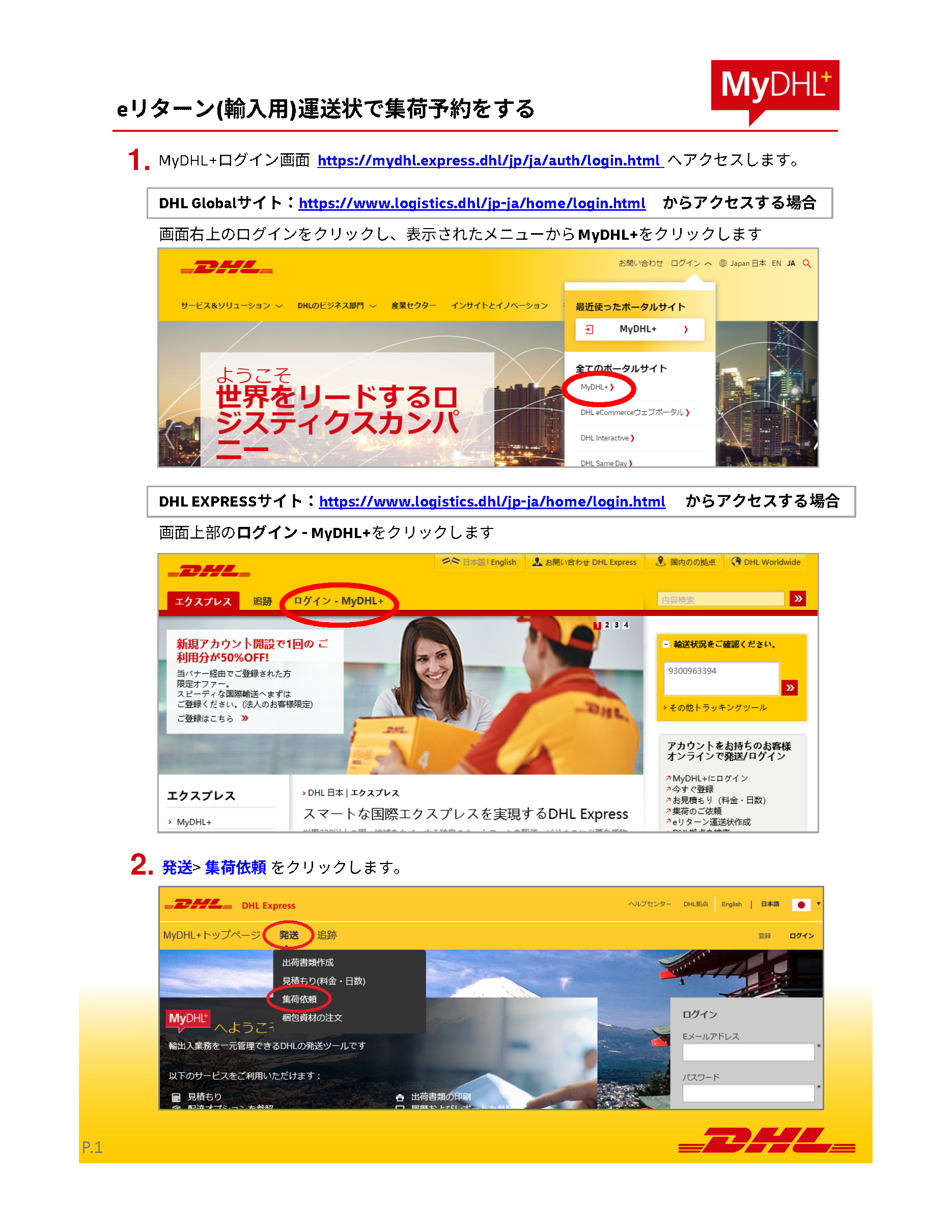
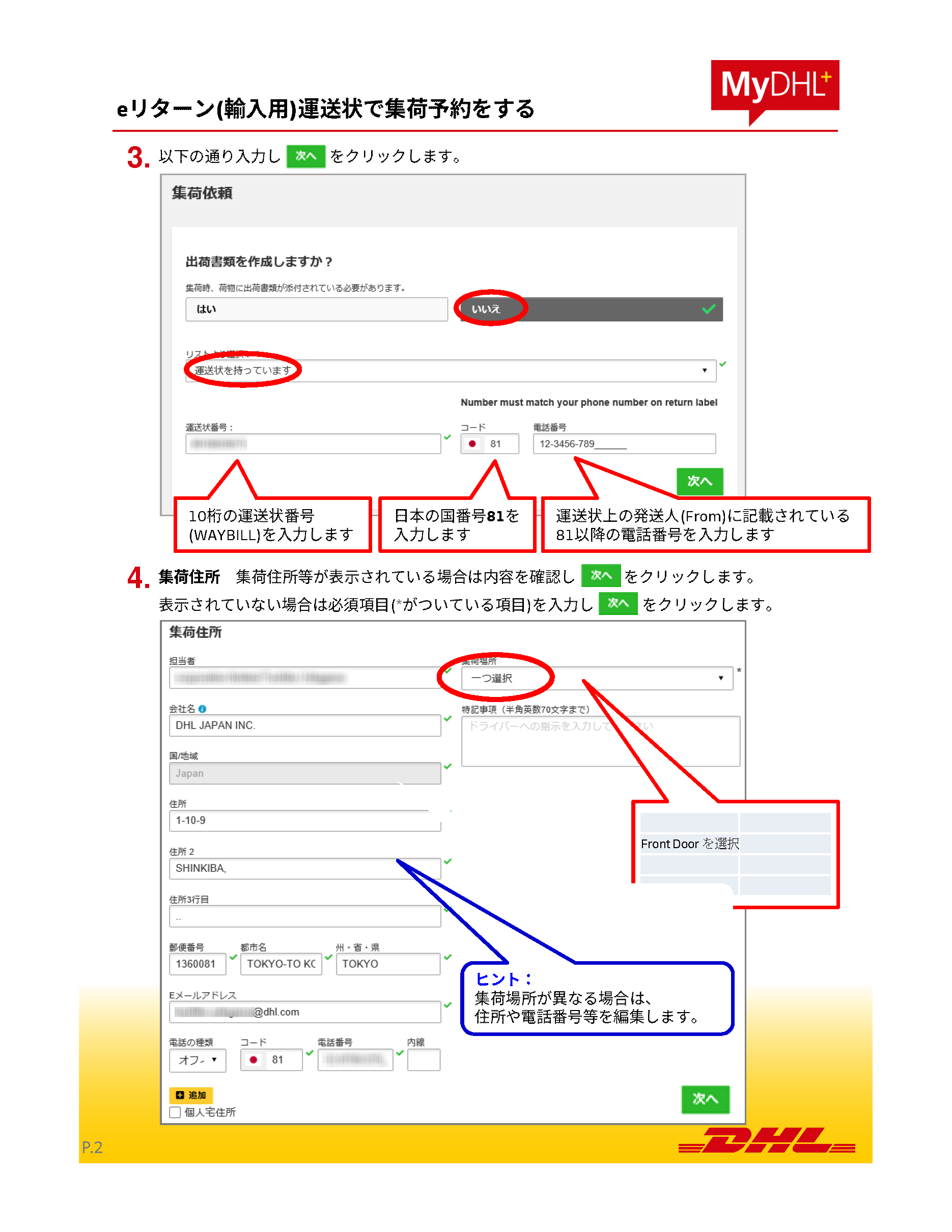
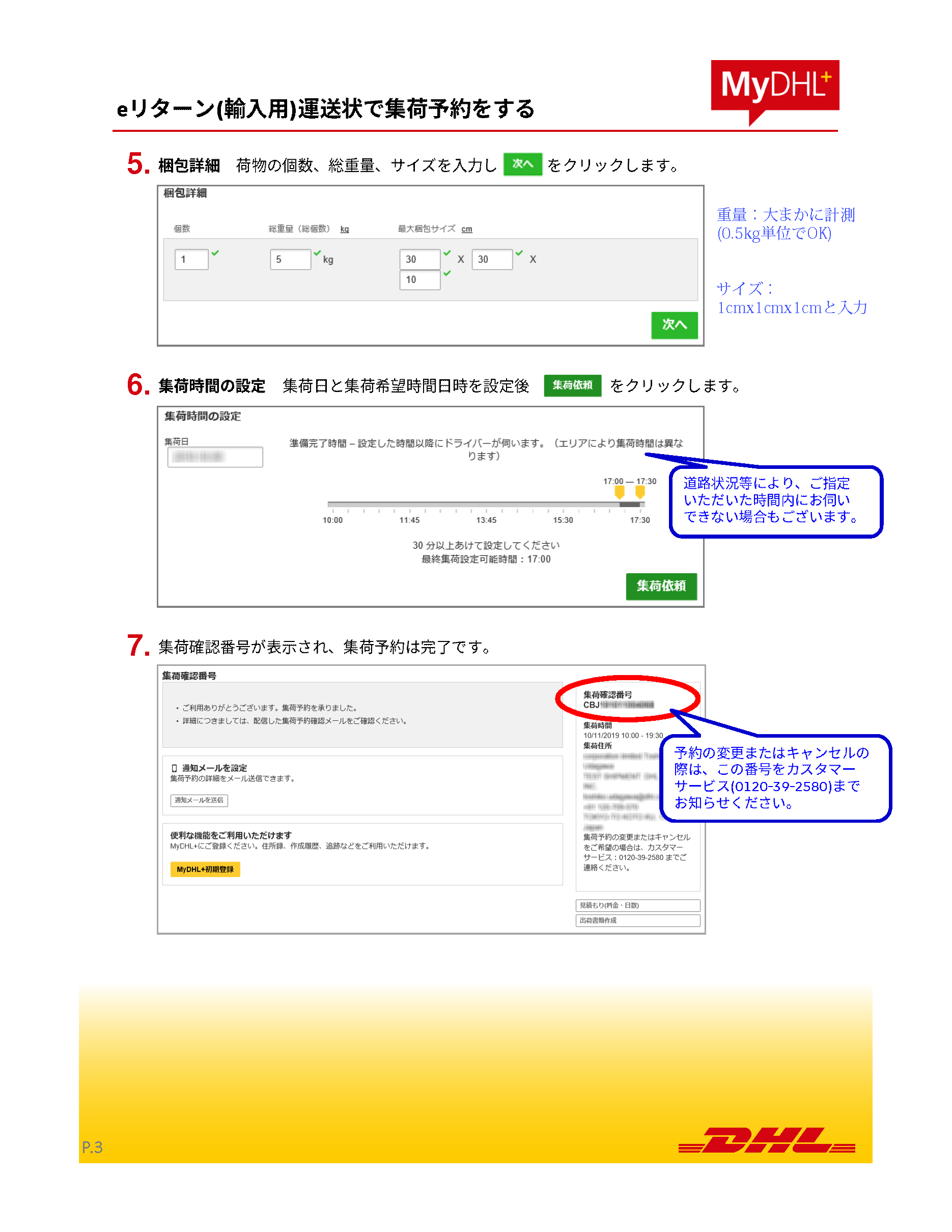
6. Put the status into the "Amazon Tour operation management sheet"
Sheet is here