OTA Booking Confirmation
Action Flow
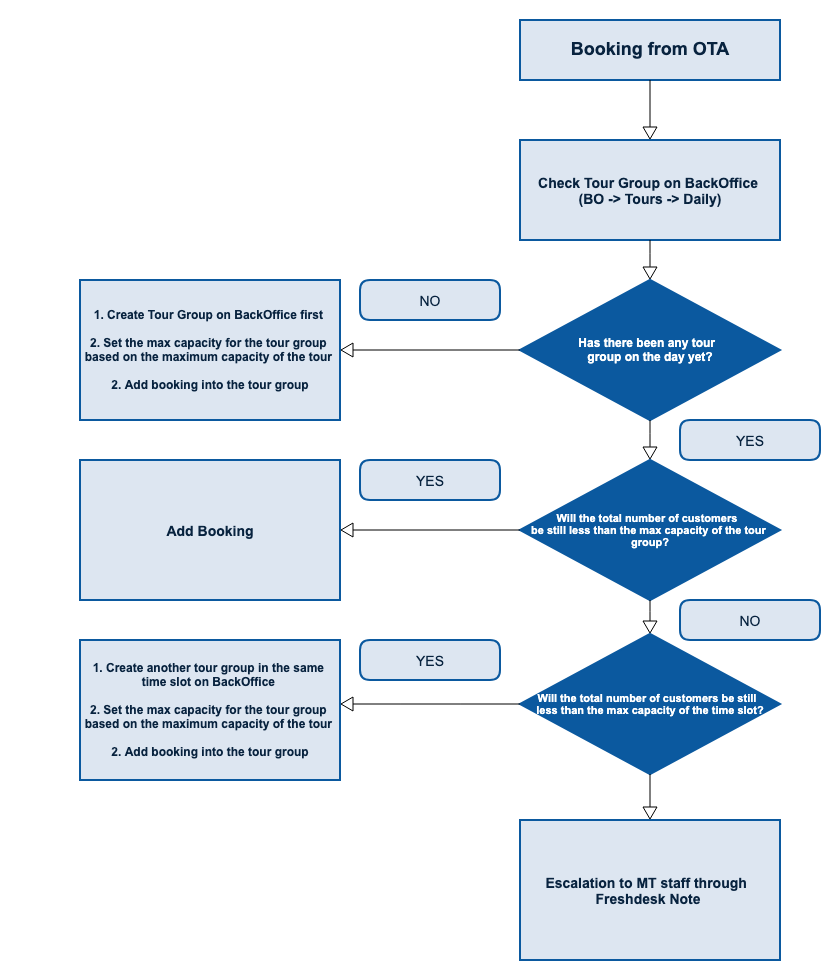 How to add OTA Booking to BackOffice
Viator
Details: 「Booking Confirmation」from Viator
Expected Action: Add Booking
Tag on FreshDesk:
OTA bookingAction Flow: Refer to the image above
Necessary Information: Tour Capacity
Operation Manual:
To create a new tour group on BackOffice:
To add bookings from Viator:
- **Causion** DO NOT put BR- in the External Partner ID field - only digits
- Message Template: None
Airbnb
- Details: 「おめでとうございます!新規予約が入りました。」from Airbnb
- Expected Action: Add Booking
- Tag on FreshDesk:
OTA booking - Action Flow: Refer to the image above
- Necessary Information: Tour Capacity
- Operation Manual:
To create a new tour group on BackOffice:
To add bookings from Viator:
- Message Template: None
Expedia
Details: 「Daily Booking Report」from notify@localexpertpartnercentral.com
Expected Action: Add Booking
Tag on FreshDesk:
OTA bookingAction Flow: Refer to the image above
Necessary Information: Tour Capacity
Operation Manual:
To create a new tour group on BackOffice:
To add bookings from Viator:
- Message Template: None
Booking.com
- Details: 「You have a new reservation 」from Booking.com
- Expected Action: Add Booking
- Tag on FreshDesk:
OTA booking - Action Flow: Refer to the image above
- Necessary Information:Tour Capacity
- Operation Manual:
To create a new tour group on BackOffice:
To add bookings from Viator:
- Message Template: None
Get Your Guide
- Details: 「Great news! The following offer has been booked」from Get Your Guide Need to calculate ""Net Price"
- Expected Action: Add Booking
- Tag on FreshDesk:
OTA booking - Action Flow: Refer to the image above
- Necessary Information: Tour Capacity
- Operation Manual:
To create a new tour group on BackOffice:
To add bookings from Viator:
- Message Template: None
Voyagin
- Details: "「You have a new booking request」from Voyagin"
- Expected Action: Add Booking
- Tag on FreshDesk:
OTA booking - Action Flow: Refer to the image above
- Necessary Information: Tour Capacity
- Operation Manual:
To create a new tour group on BackOffice:
To add bookings from Viator:
- Message Template: None
JTB AU
Details: 「You have a new booking request」from JTB AU
Expected Action: Add Booking
Tag on FreshDesk:
OTA bookingAction Flow: Refer to the image above
Necessary Information: Tour Capacity
Operation Manual
Receive an email like this
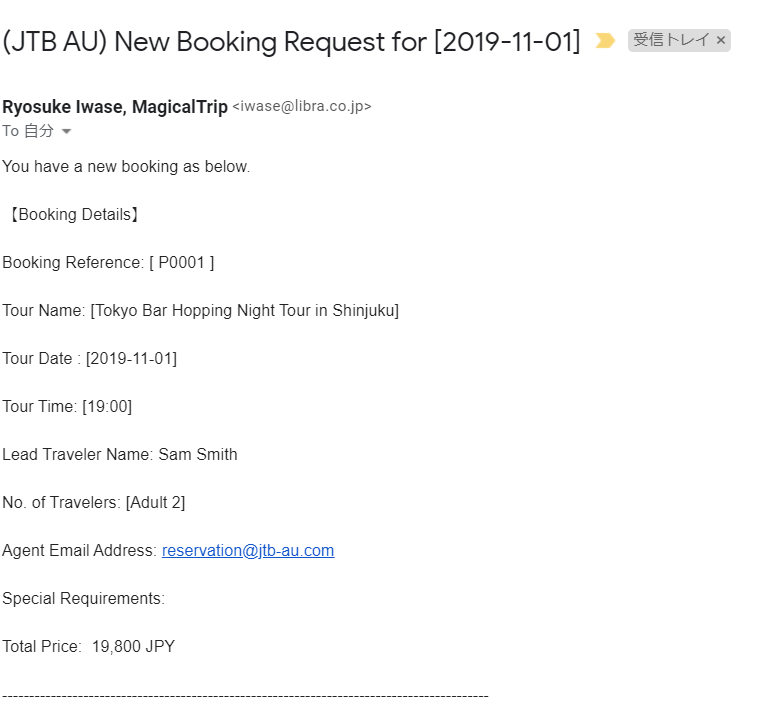
Go to Back Office and Add booking as
JTB AU(Adding flow is the same as other OTAs)use external-booking+CUSTOMERNAME@magical-trip.comand put it in the customer email address fieldCalculate the paid amount with this fomula
Total Sales(one shown in the confirmation email) - ((Total sales /1.1) * 0.15)*Ceilling one decimal point (ef. 1001.15 => 1002 )Reply to the request email via Freshdesk. In the email, include the following information:
- Write "This booking has been Confirmed"
- Tour Name and Date
- Confirmation ID (Copy the ID you see after adding a booking, shown right below "Meta")
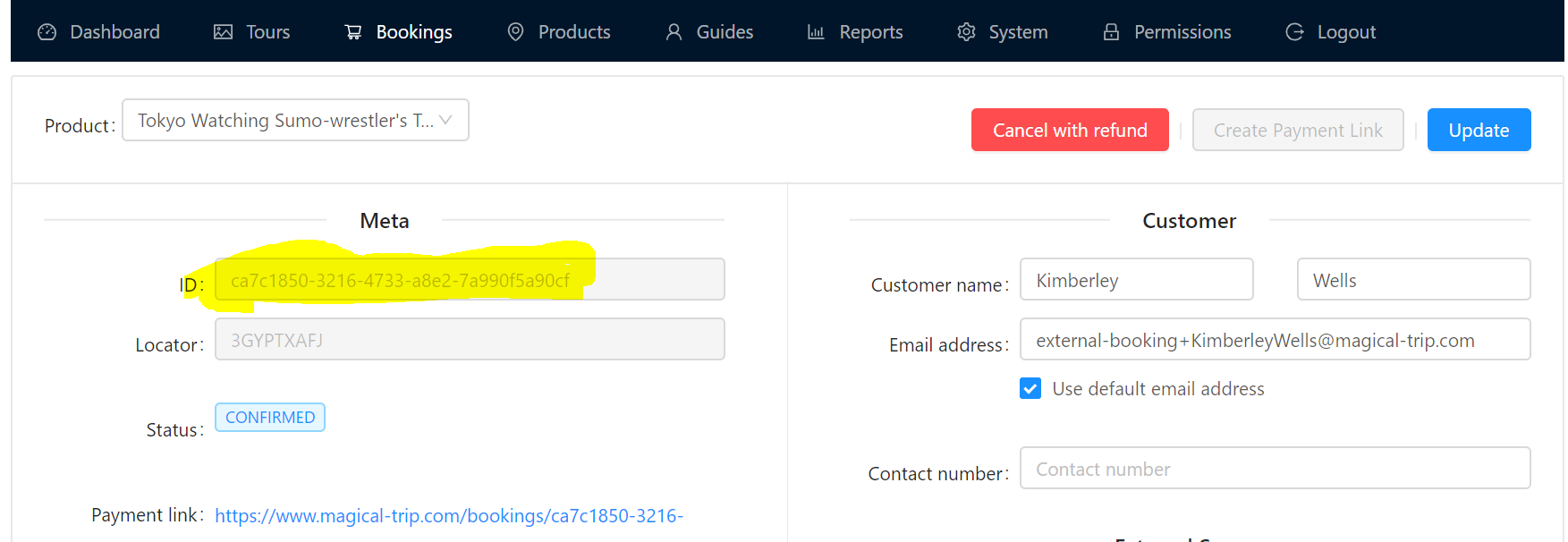
- Total Net Price (The amount you calculated from the above step)
BOJT
Details: 「You have a new booking request」from BOJT
Expected Action: Add Booking
Tag on FreshDesk:
OTA bookingAction Flow: Refer to the image above
Necessary Information: Product Details
Operation Manual
- Receive a booking request email like this
- Go to Back Office and Add booking as
Beauty-of-Japan-Tours(Adding flow is the same as other OTAs) Add a customer name to the agent email addressand put it in the customer emailaddress field (ef. clement_k.au@bojt.jp -> clement_k.au+CUSTOMERNAME@bojt.jp)- Calculate the paid amount with this fomula
Total Sales(one shown in the confirmation email) - ((Total sales /1.1) * 0.15)*Ceilling one decimal point (ef. 1001.12 => 1002 )
Japan Travel by HIS
Details: 「You have a new booking request」from Japan Travel by HIS
Expected Action: Add Booking
Tag on FreshDesk:
OTA bookingAction Flow: Refer to the image above
Necessary Information: Tour Capacity
Operation Manual
Receive an email like this
Go to Back Office and Add booking as
Japan Travel by HIS(Adding flow is the same as other OTAs)use external-booking+CUSTOMERNAME@magical-trip.comand put it in the customer email address fieldCalculate the paid amount with this fomula
Total Sales(one shown in the confirmation email) - ((Total sales /1.1) * 0.15)*Ceilling one decimal point (ef. 1001.15 => 1002 )Reply to the request email via Freshdesk. In the email, include the following information:
- Write "This booking has been Confirmed"
- Tour Name and Date
- MagicalTrip Confirmation ID (Copy the ID you see after adding a booking, shown right below "Meta")
- Total Net Price (The amount you calculated from the above step)
Freeplus
Details: 「You have a new booking request」from Freeplus
Expected Action: Add Booking
Tag on FreshDesk:
OTA bookingAction Flow: Refer to the image above
Necessary Information: Tour Capacity
Operation Manual
Receive an email like this
Go to Back Office and Add booking as
FREEPLUS(Adding flow is the same as other OTAs)use external-booking+CUSTOMERNAME@magical-trip.comand put it in the customer email address fieldCalculate the paid amount with this formula
Total Sales(one shown in the confirmation email) - ((Total sales /1.1) * 0.15)*Ceilling one decimal point (ef. 1001.15 => 1002 )Reply to the request email via Freshdesk. In the email, include the following information:
- Write "This booking has been Confirmed"
- Tour Name and Date
- Confirmation ID (Copy the ID you see after adding a booking, shown right below "Meta")
4. Total Net Price (The amount you calculated from the above step)
WILLER
Details 「予約通知 Gion Historical Virtual Walking Tour in Kyoto(2:30PM)」(Example)
Expected Action: Add Booking
Tag on FreshDesk:
OTA bookingAction Flow: Refer to the image above
Necessary Information: Tour Capacity
Operation Manual
Receive an email from willer info@willer.co.jp
Go to Back Office and Add booking as
WILLER(Adding flow is the same as other OTAs)use external-booking+CUSTOMERNAME@magical-trip.comand put it in the customer email address fieldCalculate the paid amount with this formula
Total Sales(one shown in the confirmation email) - ((Total sales * 0.15)
5. (If it is an online tour) Find the email sent to us 1 day before the tour from WILLER1. The email title is like this `自動配信 12041:Magical Trip御中 メールアドレス通知(翌日バーチャルツアー用)`2. Download the zip file (passcode is `willer`)3. Find a customer's email address and share a Zoom link
ALl Japan Tours
Details: 「You have a new booking request」from All Japan Tours
Expected Action: Add Booking
Tag on FreshDesk:
OTA bookingAction Flow: Refer to the image above
Necessary Information: Tour Capacity
Operation Manual
Receive an email like this
Go to Back Office and Add booking as
All Japan Tours(Adding flow is the same as other OTAs)use external-booking+CUSTOMERNAME@magical-trip.comand put it in the customer email address fieldCalculate the paid amount with this fomula
Total Sales(one shown in the confirmation email) - ((Total sales /1.1) * 0.15)*Ceilling one decimal point (ef. 1001.15 => 1002 )Reply to the request email via Freshdesk. In the email, include the following information:
- Write "This booking has been Confirmed"
- Tour Name and Date
- Confirmation ID (Copy the ID you see after adding a booking, shown right below "Meta")
- Total Net Price (The amount you calculated from the above step)
Amazon
Details: 「You have a new Amazon session booking scheduled for 〇〇」
Expected Action: Add Booking
Tag on FreshDesk:
OTA bookingAction Flow: Refer to the image above
Necessary Information: Always private tour
Operation Manual
Receive an email like this
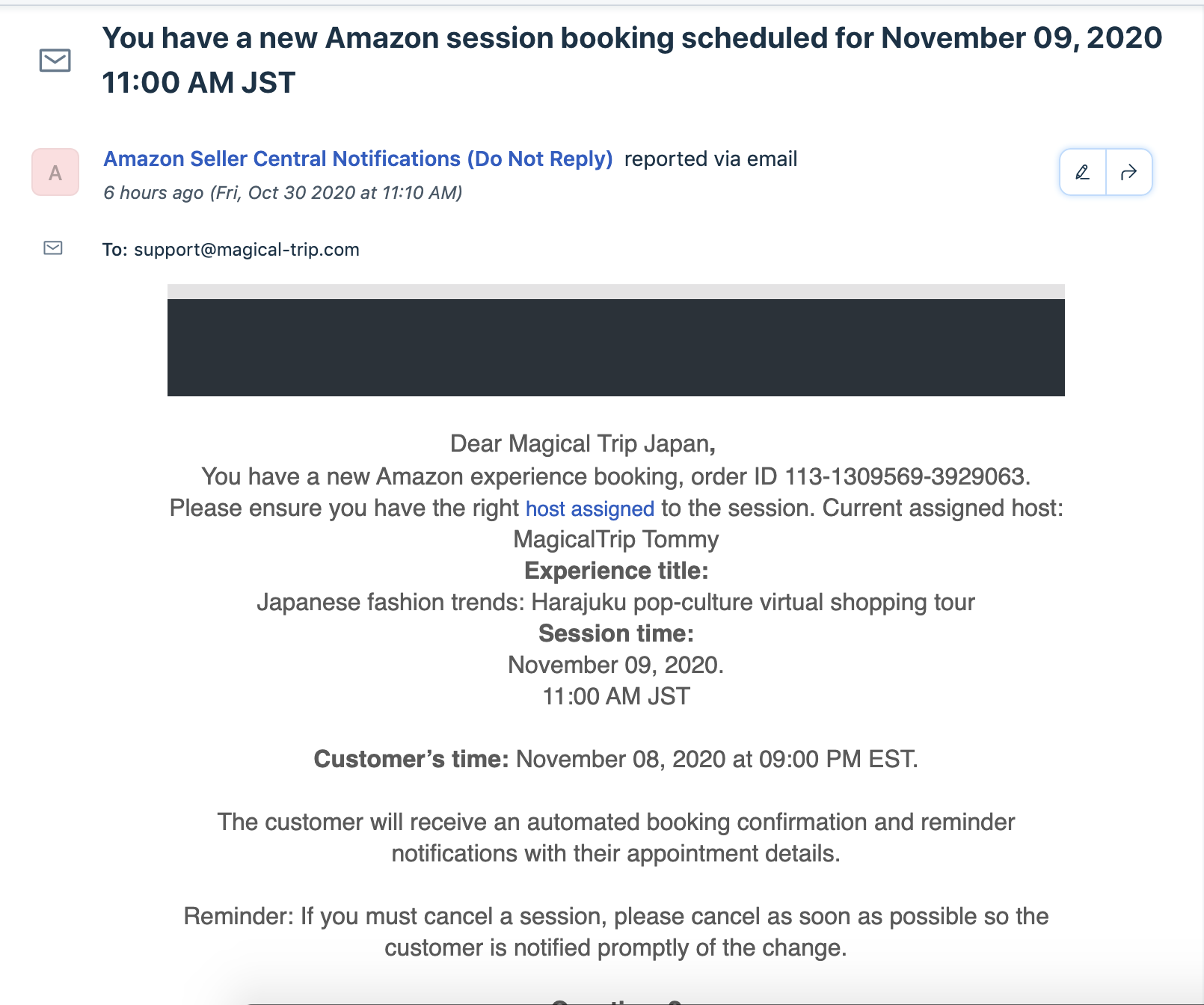
Go to BackOffice and create a private tour group
Add booking as
Amazon(Adding flow is different from other OTAs, check the flow below)Check customer's information in the booking confirmation email
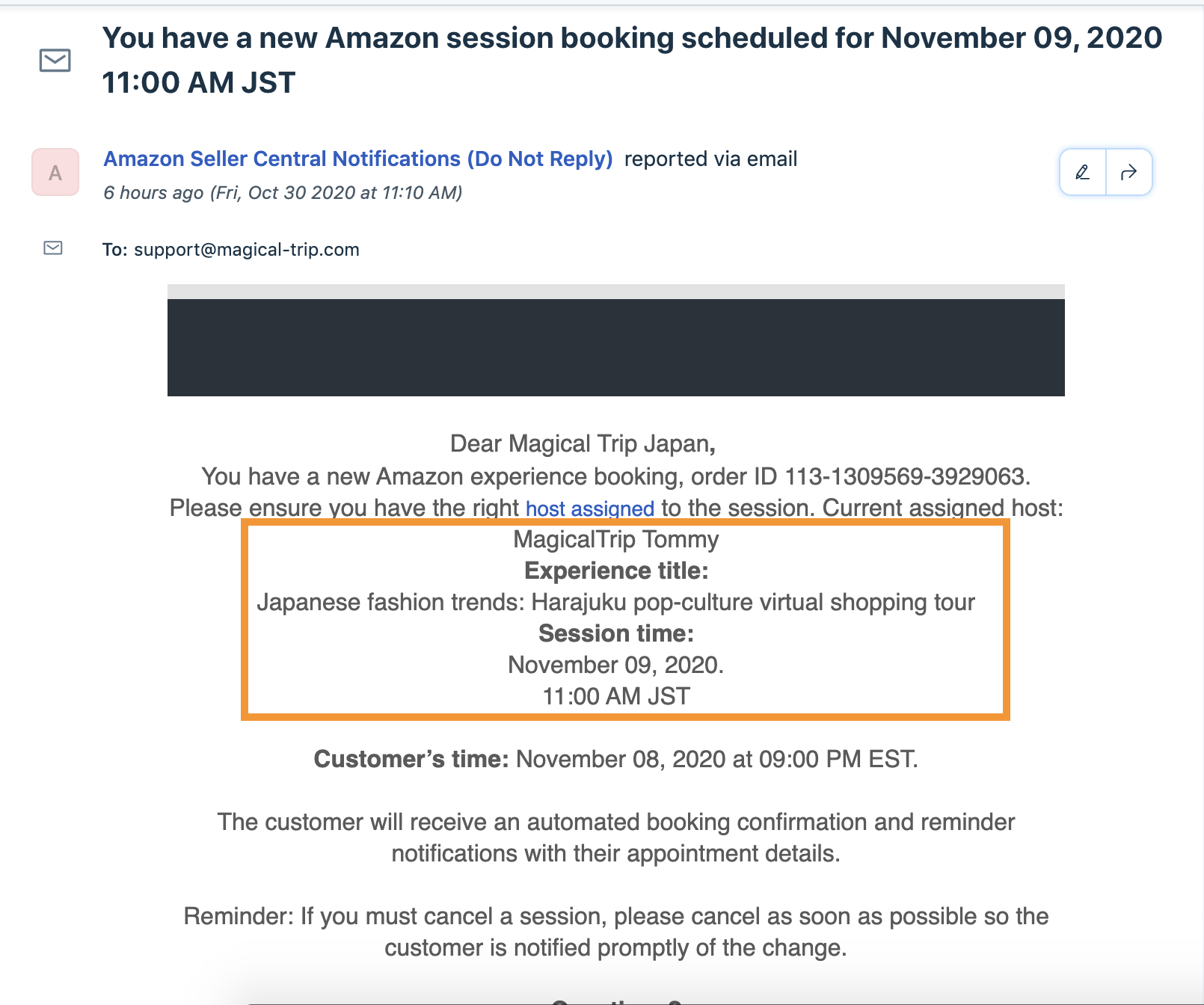
Go to Amazon seller central, Your Session, and Find customer name based on the
product name,Guide nameandtour date/timeshown in the booking confirmation email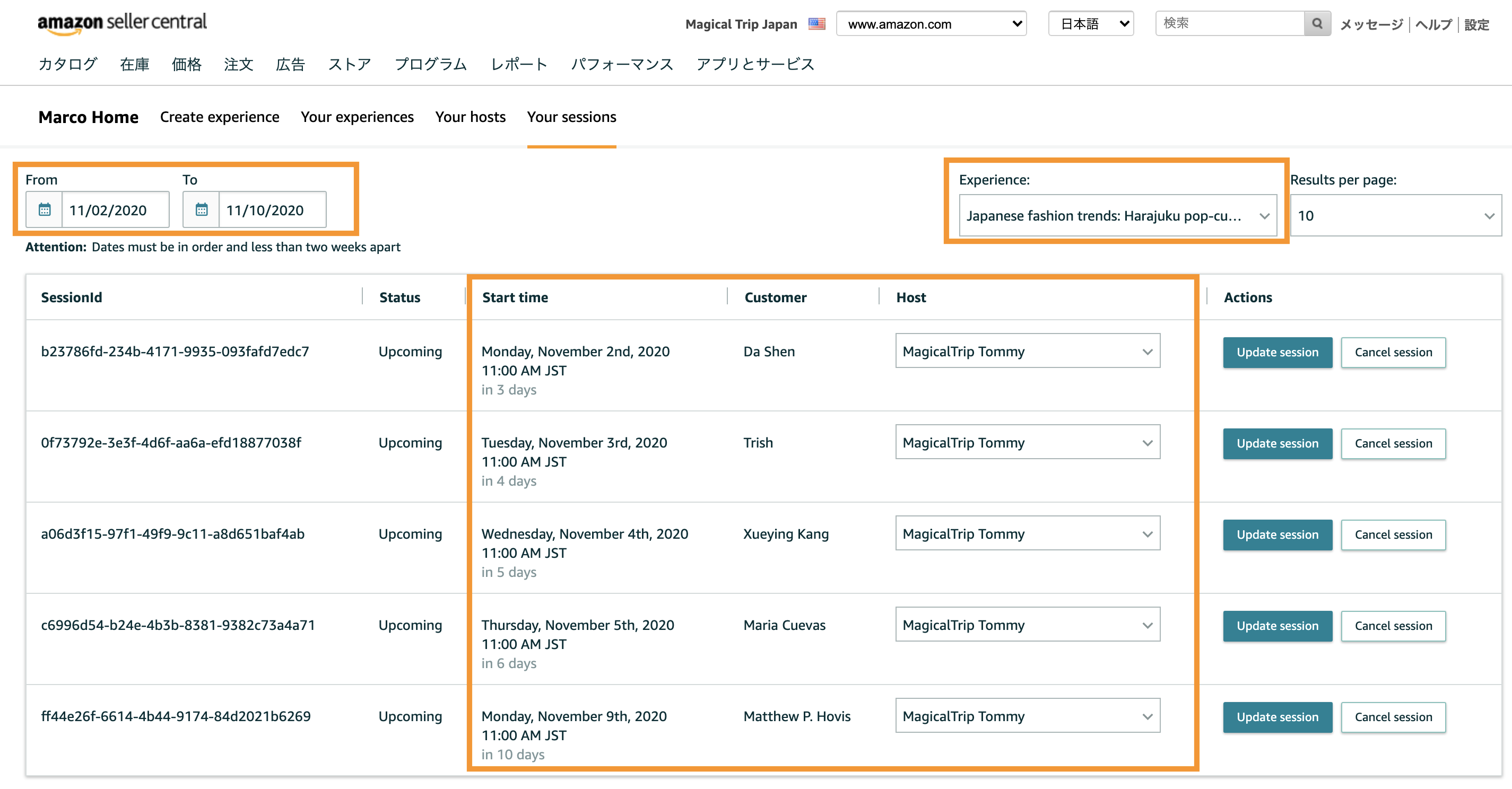
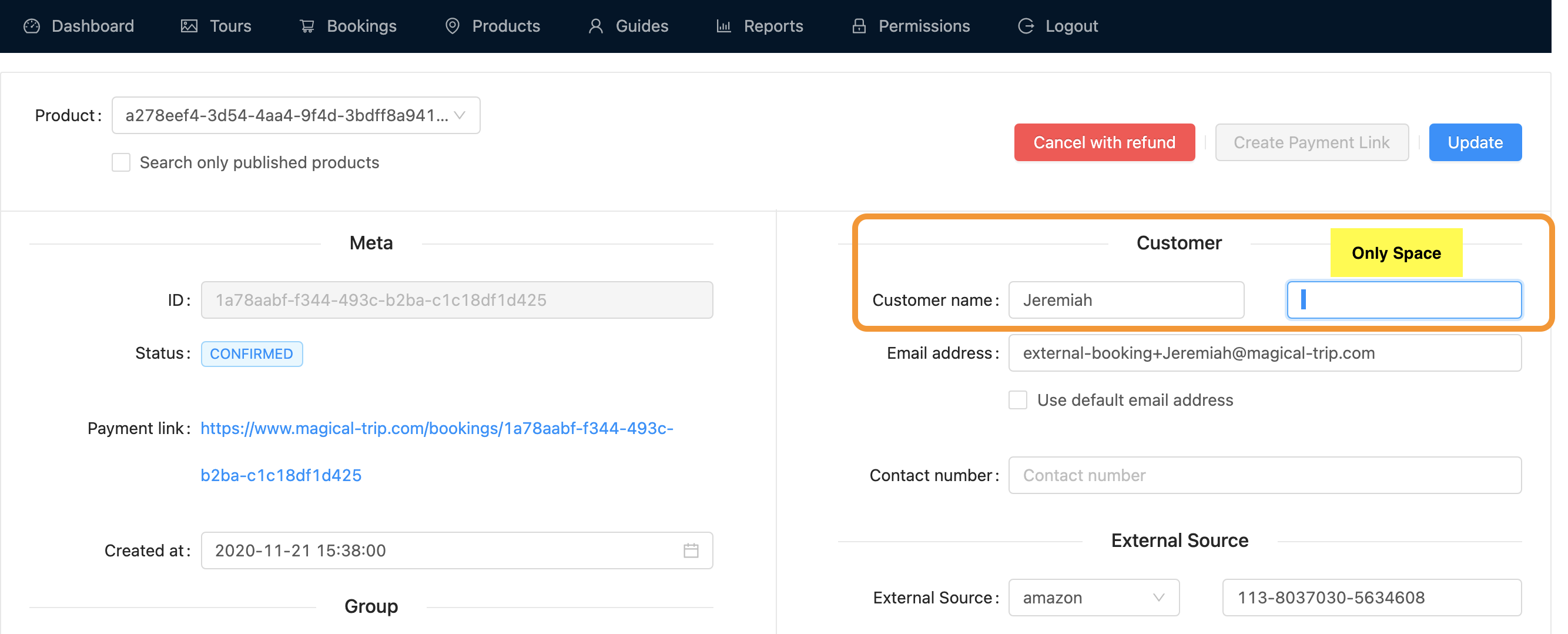
When there is only first name in customer name: Put first name in first name field, and put space in last name field in backoffice

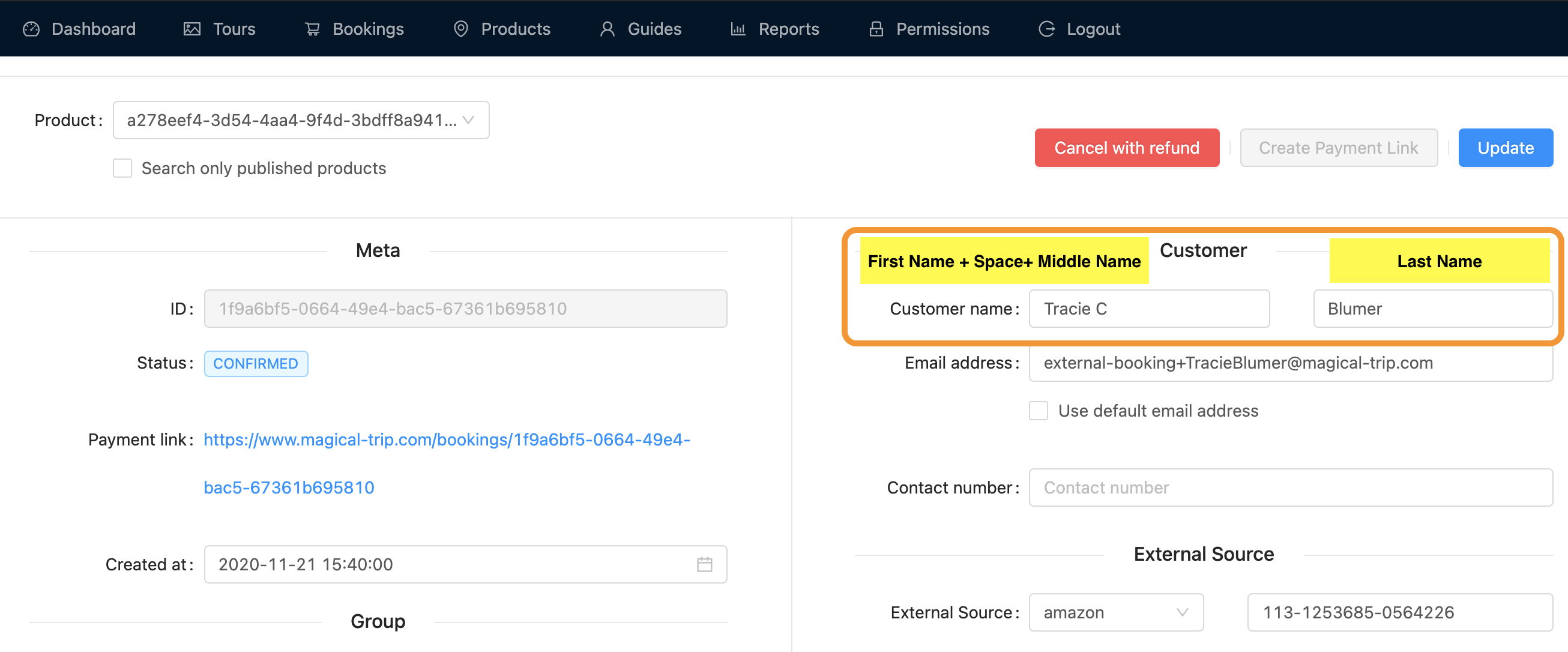
When there is middle name in customer name: Put first name + space + middle name in first name field and pur last name in last name field in backoffice

Set
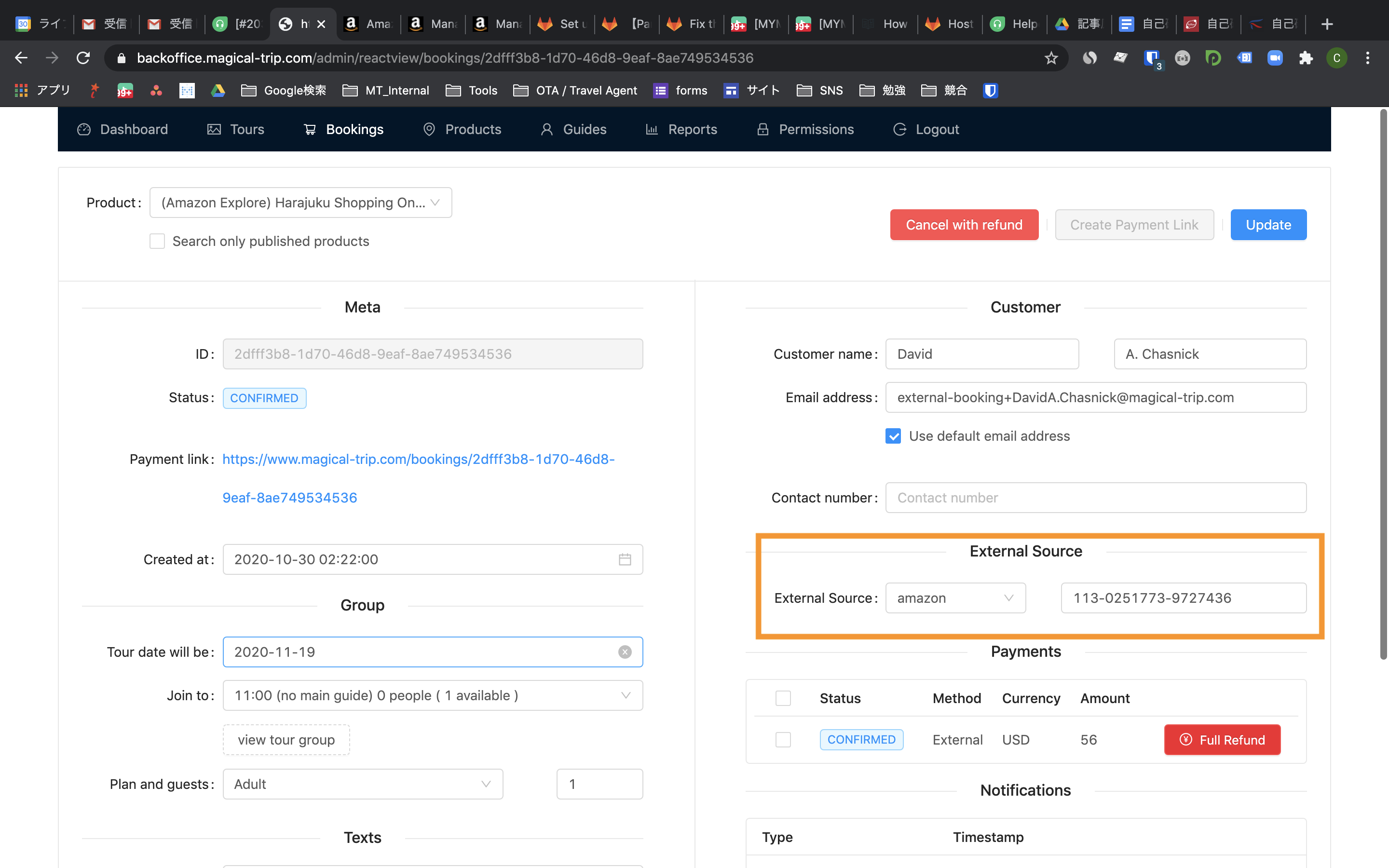
Amazon Booking Order IDasExternal IDin Backoffice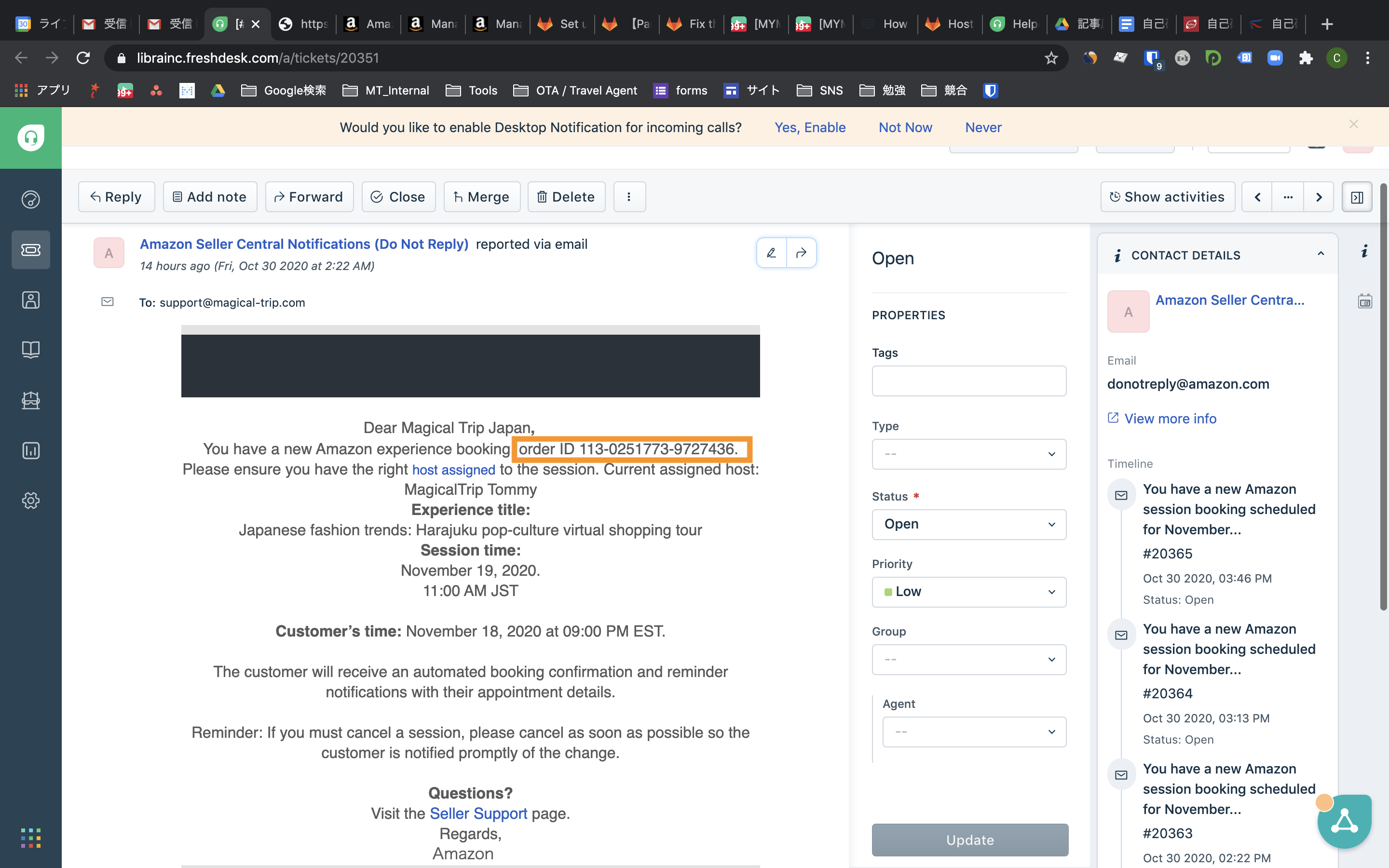
Calculate the payment amount: Payment Amaount =
Product Price shown in Amazon *0.8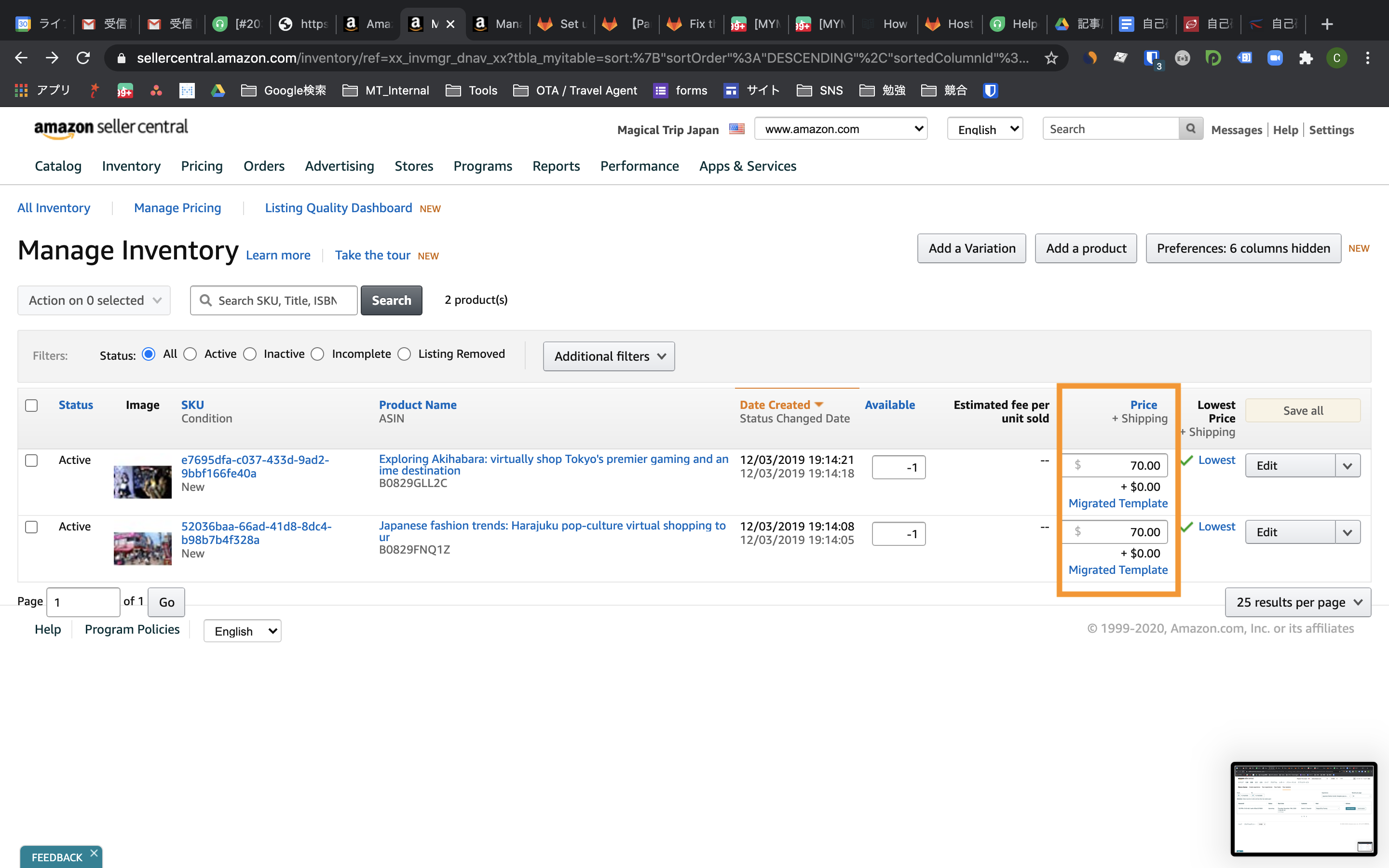
Add booking information to BackOffice